今天你可能想要 push 或 clone 你的 GitHub 儲存庫時,你可能會看到 git 要驗證你的身份:
Username for 'https://github.com':
Password for 'https://name@github.com':
然後你輸入了帳號跟密碼:
remote: Support for password authentication was removed on August 13, 2021.
remote: Please see https://docs.github.com/get-started/getting-started-with-git/about-remote-repositories#cloning-with-https-urls for information on currently recommended modes of authentication.
fatal: Authentication failed for 'https://github.com/test/test.git/'
卻看到,它寫著 Support for password authentication was removed on August 13, 2021. ,也就是說這個登入方式早在 2021/8/13
就被停用了!
本篇文章就是要來紀錄要如何正確連結 GitHub 。
確認連結方式
GitHub 儲存庫有兩種連接方式,一個是 HTTPS(預設)一個是 SSH ,可以在連結儲存庫時設定。
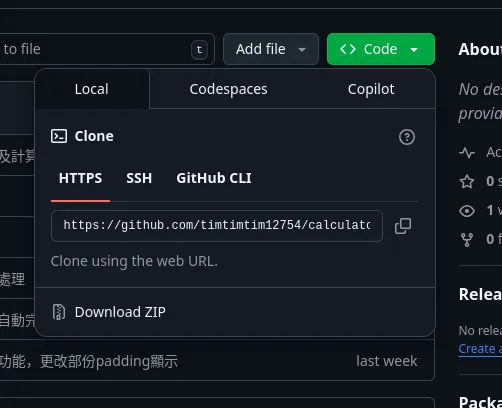
可以用 git remote 指令來查看所有遠端儲存庫:
git remote -v會輸出類似像這樣的結果:
origin	https://github.com/yourname/project.git (fetch)
origin	https://github.com/yourname/project.git (push)
這裡顯示 HTTPS:// 代表是用 HTTPS,如果是用 SSH 則會顯示類似這樣的結果:
origin	git@github.com:yourname/project.git (fetch)
origin	git@github.com:yourname/project.git (push)
用 SSH 連線就會用 git@github.com 作為開頭。
SSH 或 HTTPS
現在你已經知道了連結儲存庫有兩種連線方式,那要使用那一個呢?
首先來比較一下 SSH 跟 HTTPS
HTTPS
優點:
- 簡單設定,登入帳號即可
缺點:
- 安全性較低
- 切換身份較複雜
- 要額外安裝 GitHub CLI 作為驗證
SSH
優點:
- 安全性高
- 可輕鬆切換身份
缺點:
- 初次使用要設定 SSH Key,較麻煩
- Windows 可能要額外安裝軟體
比較完之後可以發現 SSH 連線方式比較具有優勢,頂多就只是首次要做比較多設定,所以除非你只是暫時 clone 一下東西,不然 建議使用
SSH 連線方式。
接下來我會來講解如何對於 HTTPS 或 SSH 的連線方式來驗證身份。
使用 HTTPS
要用 HTTPS 連線情況下,直接輸入密碼的功能已經在 2021 年 8 月就停止支援了,所以你必須安裝 GitHub CLI 來驗證身份。
首先,先到 GitHub CLI 的網站下載安裝。
安裝完之後輸入以下指令:
gh auth login然後它會問你一些問題,你就選 HTTPS 登入,然後記得複製代碼就好了
? Where do you use GitHub? GitHub.com
? What is your preferred protocol for Git operations on this host? HTTPS
? Authenticate Git with your GitHub credentials? Yes
? How would you like to authenticate GitHub CLI? Login with a web browser

! First copy your one-time code: 947C-2B46 # 代碼
Press Enter to open https://github.com/login/device in your browser...
Opening in existing browser session.
打開 裝置登入畫面 後登入你的帳號後再輸入代碼就行了
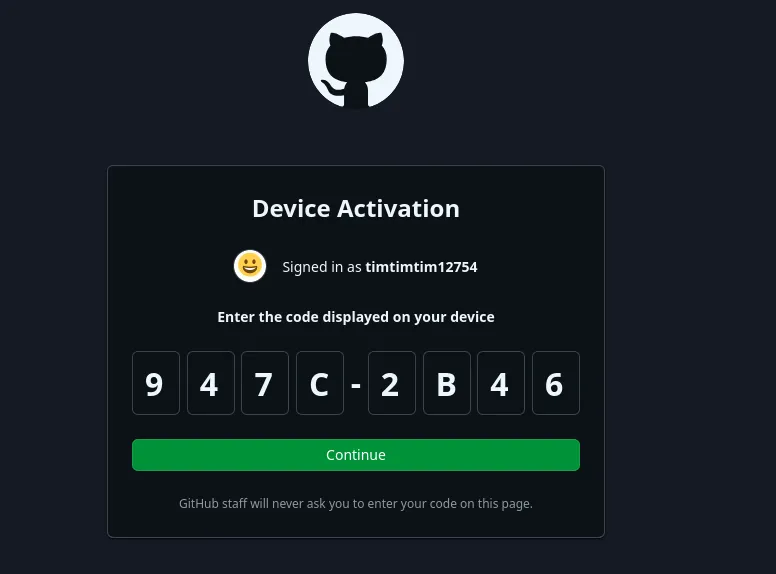
這樣就能成功進行 push 操作了
Enumerating objects: 4, done.
Counting objects: 100% (4/4), done.
Delta compression using up to 20 threads
Compressing objects: 100% (3/3), done.
Writing objects: 100% (3/3), 347 bytes | 347.00 KiB/s, done.
Total 3 (delta 1), reused 0 (delta 0), pack-reused 0
remote: Resolving deltas: 100% (1/1), completed with 1 local object.
To https://github.com/yourname/project.git
   620b31c..5d3e57f  main -> main
使用 SSH
要使用 SSH 連線首先你必須要有一個 SSH Key,以下指令會生成分成公鑰跟私鑰:
ssh-keygen -t ed25519 -C "your_email@example.com"它會先問你要 Key 儲存在哪裡,按下空白代表預設,密碼可以設定或是空白無密碼(直接 Enter)。
Generating public/private ed25519 key pair.
Enter file in which to save the key (/home/test/.ssh/id_ed25519):
Enter passphrase (empty for no passphrase):
Enter same passphrase again:
Your identification has been saved in /home/test/.ssh/id_ed25519
Your public key has been saved in /home/test/.ssh/id_ed25519.pub
The key fingerprint is:
SHA256:i4QOg2BXp7GdnQG7A1keXuKZNqDjJ5G+P9Mn+PbUlsk test@example.com
The key's randomart image is:
+--[ED25519 256]--+
|     + *.o       |
|    + & X o      |
|.. * = % o       |
|o.+ o.o o        |
|. o+...oS        |
|   ++. ...o o    |
|   .. + .. E     |
|    .+ +...      |
|     .=.+.       |
+----[SHA256]-----+
然後你必須複製你 SSH Key 的公鑰(驗證身份),Key 會儲存在 ~/.ssh 資料夾,例如剛剛輸出結果中有顯示公鑰在
/home/test/.ssh/id_ed25519.pub,這時把裡面的東西複製出來。
例如我的公鑰是:
ssh-ed25519 AAAAC3NzaC1lZDI1NTE5AAAAIEQmOy7OWP4nAYePVTMDaos3M77W1Zkb3SgsUj4K4ywB test@example.com然後把它複製到 GitHub 新增 SSH Key 區,然後按下儲存。
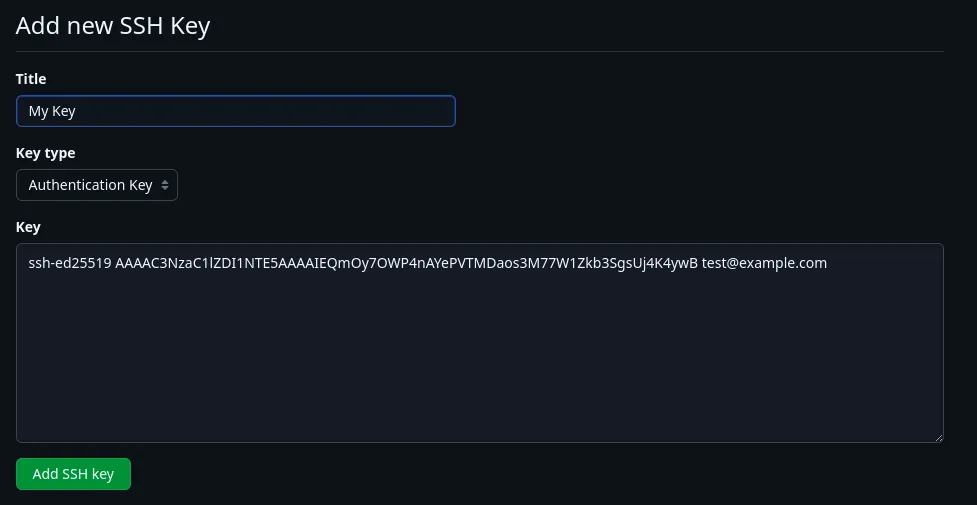
接下來應該就能正常 push 跟 pull 了
結論
HTTPS 要安裝 GitHub CLI,SSH 需要生成並添加公鑰,整體時間其實是差不多。
所以還是建議使用 SSH 連線方式,不僅安全性高,還可以讓後續操作更為方便。